
Tuning Knowledge
The Tune page is Squad’s admin control plane for managing the system’s learned knowledge. Every question a user asks flows through AIM and, once answered, becomes a candidate for curation. By approving, amending, or rejecting queries you build a library of proven patterns that make the system faster and more accurate over time.
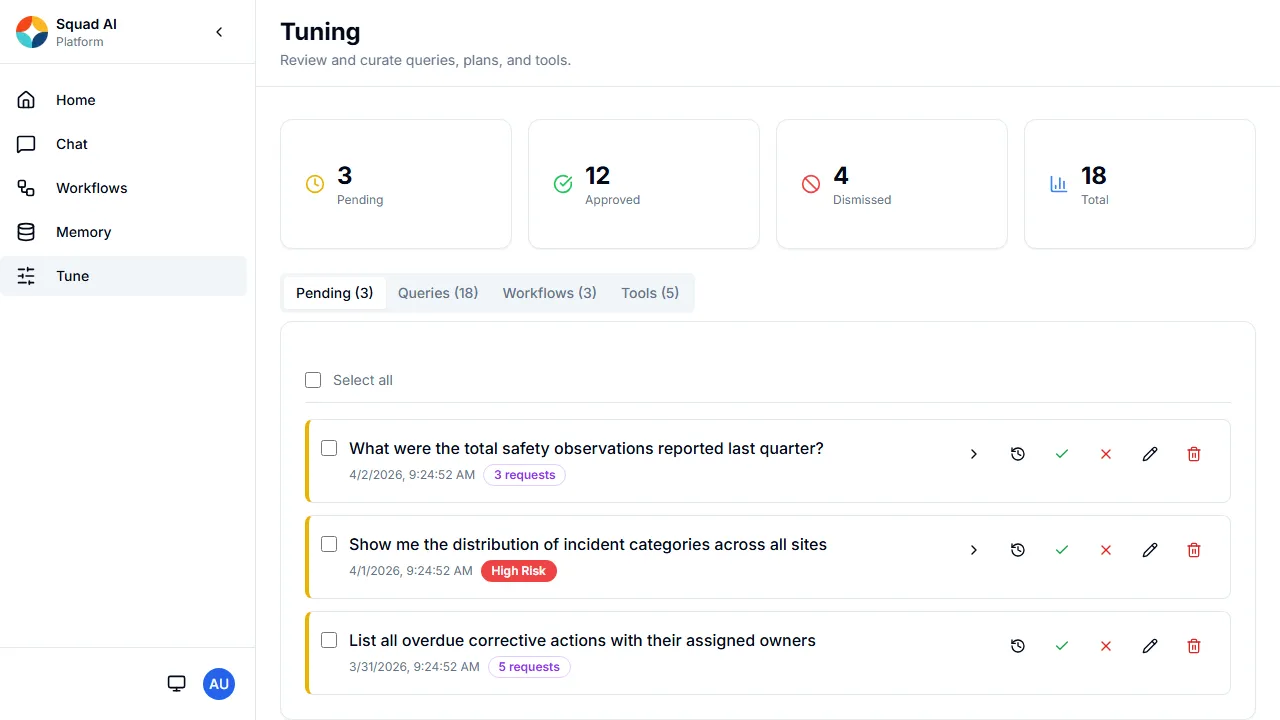
Accessing the Tune page
The Tune page is available to users with the admin role at Operations > Tune in the sidebar navigation. Non-admin users do not see the Tune link and cannot access the page directly.
Stats bar
The top of the page displays four summary cards:
| Card | Colour | Description |
|---|---|---|
| Pending | Yellow | Queries awaiting human review. |
| Approved | Green | Queries promoted to reusable templates. |
| Dismissed | Red | Queries that have been rejected, declined, or revoked (includes revoked workflows). |
| Total | Blue | Sum of all queries in the system. |
Clicking a stat card switches to the Queries tab and applies the corresponding filter. The active filter is highlighted with a ring around the card.
Pending tab
The default view. Every query that AIM has answered but that has not yet been reviewed appears here.
Each pending query card shows:
- Query text — the natural-language question the user asked.
- Timestamp — when the query was received.
- Risk level badge — “High Risk” if the query was flagged during classification.
- Request count badge — how many times similar questions have been asked (clicking expands the request history).
Actions on pending queries
Each card exposes four action buttons:
- Approve (green tick) — opens a confirmation panel. If AIM produced Cypher attempts for the query, you can select which attempt to use as the reusable template. If no Cypher was generated (vector-only retrieval), approving marks the query type as valid so future matches trigger re-planning.
- Reject (red cross) — marks the query as excluded from the template bank. You can optionally provide a reason. Rejected queries will not be matched in future.
- Amend (pencil) — lets you correct the query text before approving. The amended version becomes the reusable template, paired with the best existing Cypher attempt.
- Delete (bin) — permanently removes the query and all linked data (attempts, audit trail, requests).
Bulk actions
When multiple queries are pending, a select-all checkbox appears at the top. Selecting one or more queries reveals a floating action bar at the bottom of the screen with:
- Reject N — bulk-reject selected queries.
- Delete N — bulk-delete with a confirmation prompt.
- Clear — deselect all.
Audit and request history
Every card includes expandable sections:
- Audit trail (clock icon) — shows a chronological log of actions taken on the query (created, approved, rejected, amended, etc.) with actor and timestamp.
- Attempts (chevron) — shows each Cypher attempt AIM made, including attempt number, Cypher text, success/failure status, and result count.
- Requests (purple badge) — lists every user request that matched this query, with session IDs and response text.
Queries tab
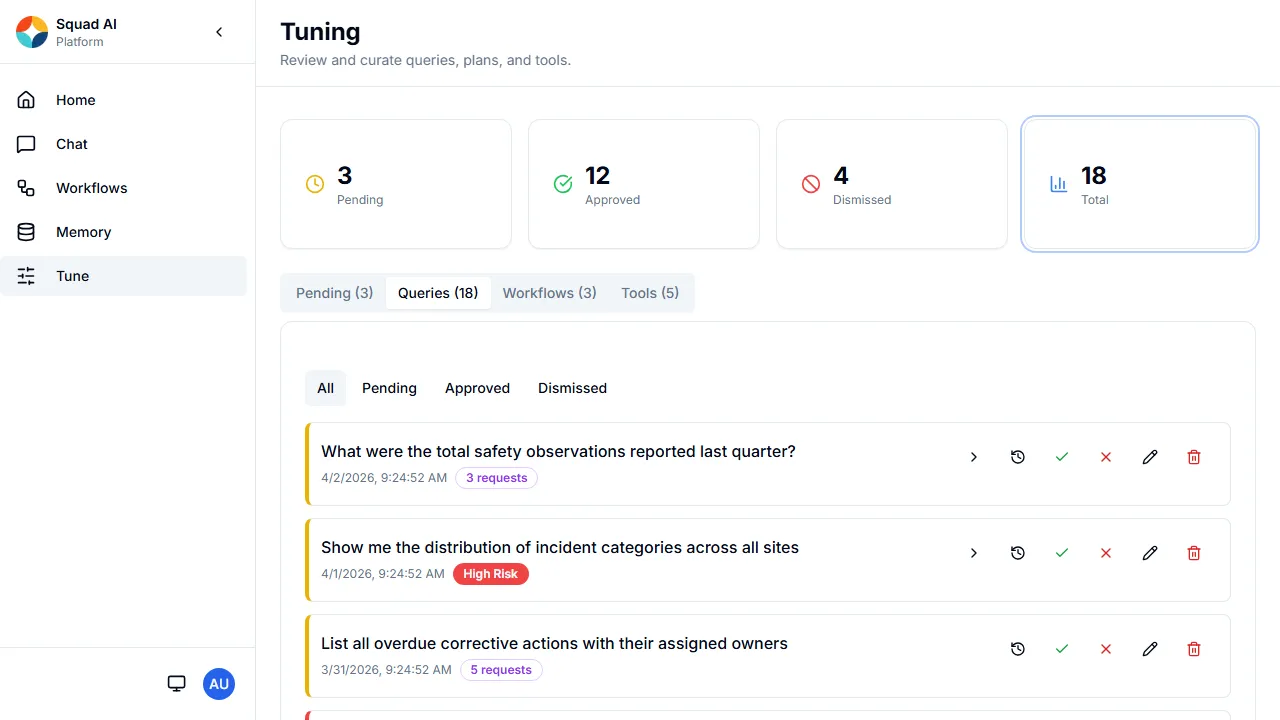
The Queries tab provides a unified view across all query statuses. Filter pills at the top let you narrow by status:
- All — every query in the system.
- Pending — same as the Pending tab.
- Approved — queries that have been promoted to templates. Approved cards display the stored Cypher text and a “Matched N times” badge showing how often the template has been reused.
- Dismissed — queries that were rejected or declined.
The same per-query actions are available here. Approved queries gain a Revoke action (shield icon) which removes them from the active template bank — AIM will generate a fresh plan for future similar questions instead of reusing the stored Cypher.
Workflows tab
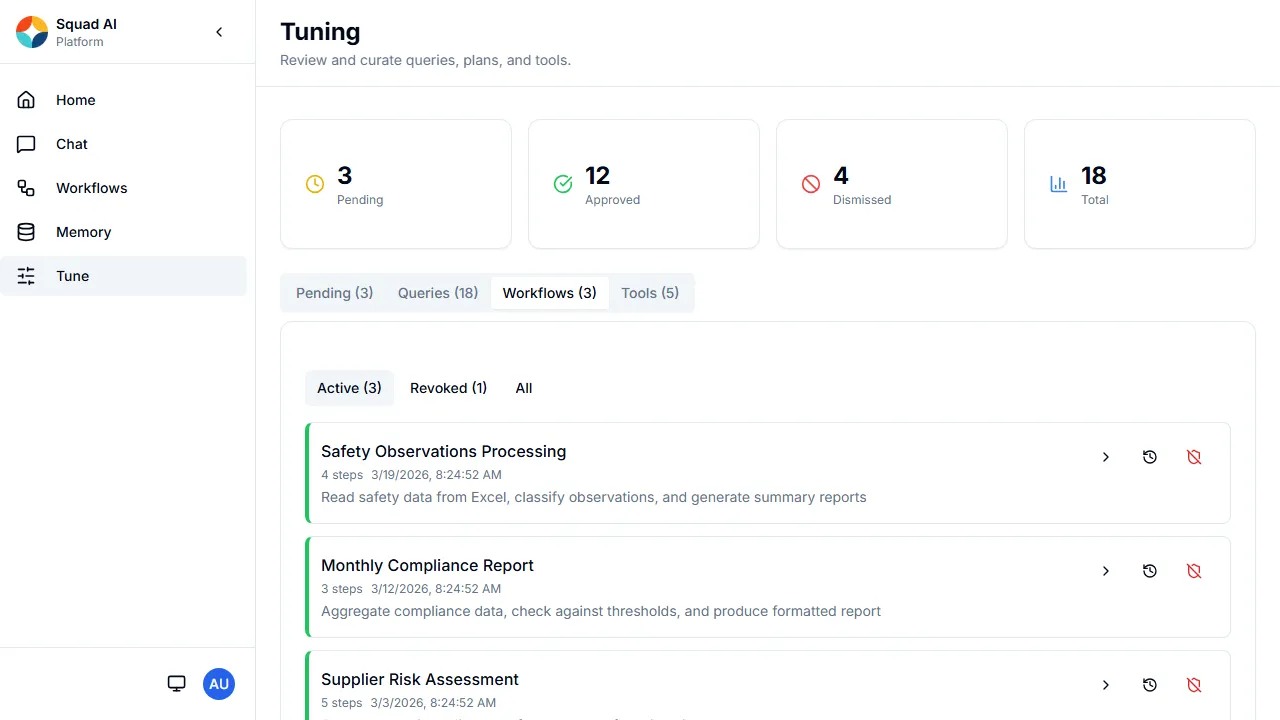
Workflows are multi-step execution plans that AIM crystallises when it solves a complex question. Each workflow card shows:
- Name — the workflow identifier (or its ID if unnamed).
- Step count — how many execution steps the workflow contains.
- Created date — when AIM crystallised it.
- Category badge — classification of the workflow type.
- Description — a brief summary of what the workflow does.
Filters
- Active — workflows currently available to AIM as planning templates.
- Revoked — workflows that have been removed from the active pool. Revoked cards appear faded with a strikethrough name.
- All — both active and revoked.
Actions
- Expand steps (chevron) — reveals the individual steps, each showing step number, name, description, and tool badge.
- Audit trail (clock) — chronological action log.
- Revoke (shield, active workflows) — removes the workflow from AIM’s planning templates.
- Restore (rotate, revoked workflows) — re-enables the workflow.
Tools tab
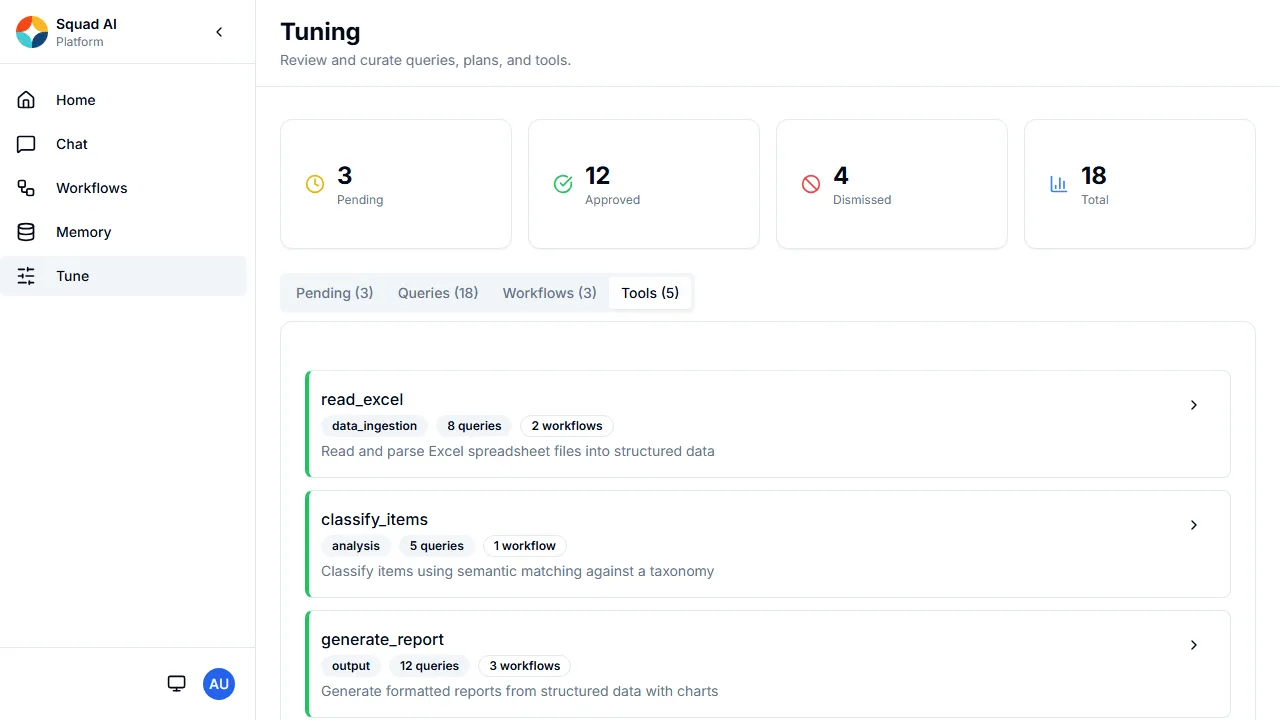
The Tools tab lists every tool registered with AIM for planning and execution. Each tool card shows:
- Tool name — the function identifier used by AIM.
- Category badge — grouping for the tool.
- Query count — how many queries have used this tool.
- Workflow count — how many workflows reference it.
- Description — what the tool does.
Expanding a tool card (when it has linked workflows) shows which workflows use it, with their names, descriptions, and categories.
How tuning improves accuracy
Each approved query becomes a template in AIM’s knowledge base. When a new question arrives that is semantically similar to an approved template, AIM can:
- Skip planning — reuse the stored Cypher query directly instead of generating a new execution plan.
- Reduce latency — template reuse avoids the planner LLM call, which is typically the slowest step.
- Increase consistency — the same question always produces the same result path.
The “Matched N times” badge on approved queries tells you how often this shortcut has been used, giving you a measure of the template’s value.
Conversely, rejecting a query tells AIM that this question type should not be templated — future similar questions will always be planned from scratch.